PulsarPrime.AI
A downloadable AI Roleplay for Windows and Linux
What is PulsarPrime
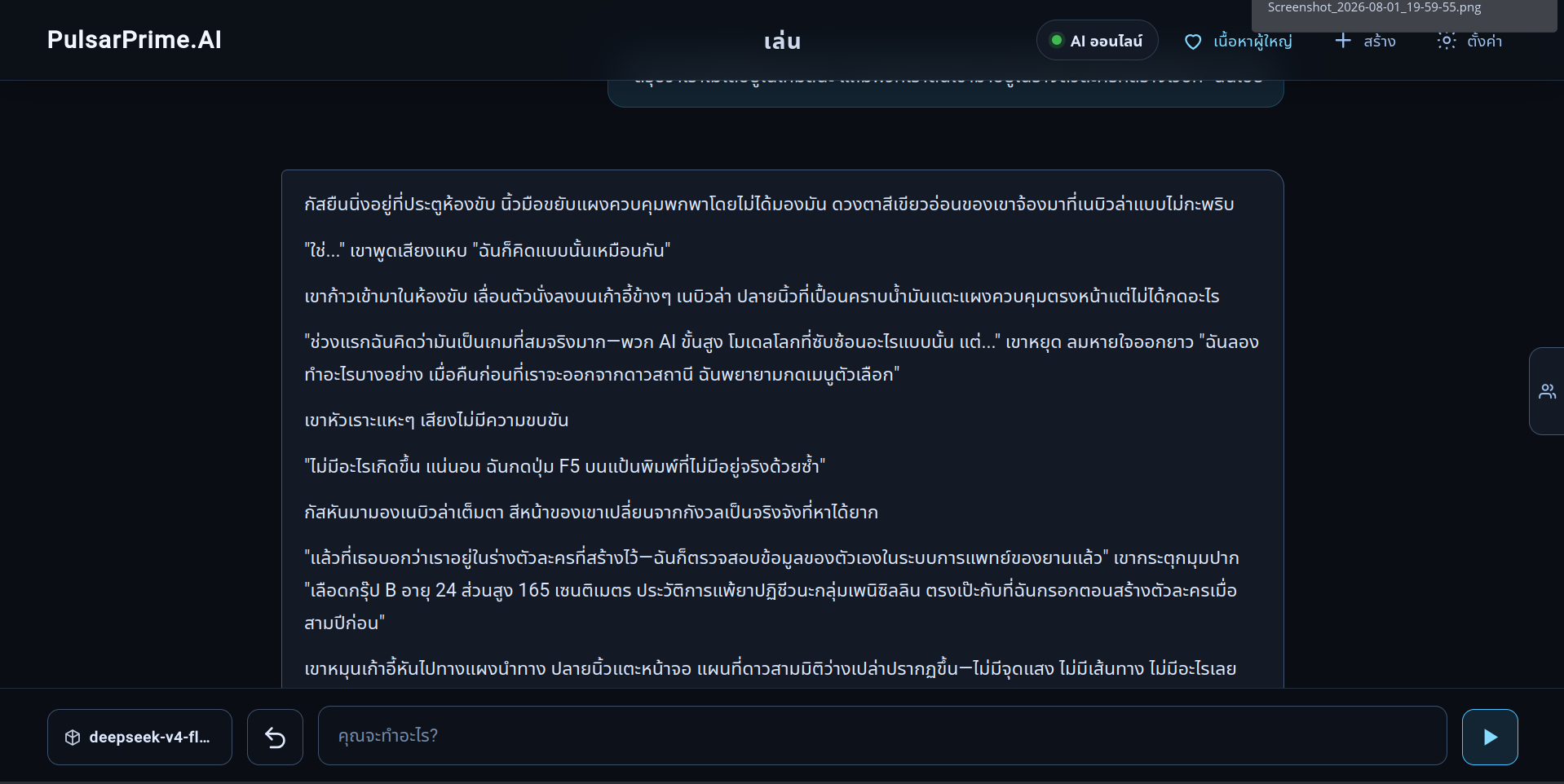
PulsarPrime is an engine for long-term AI roleplay. It isn't an AI itself — it acts as a middle layer that connects to whichever AI provider's API you choose (e.g. DeepSeek, OpenAI, OpenRouter) and handles memory, context, and world/character structure on your behalf.
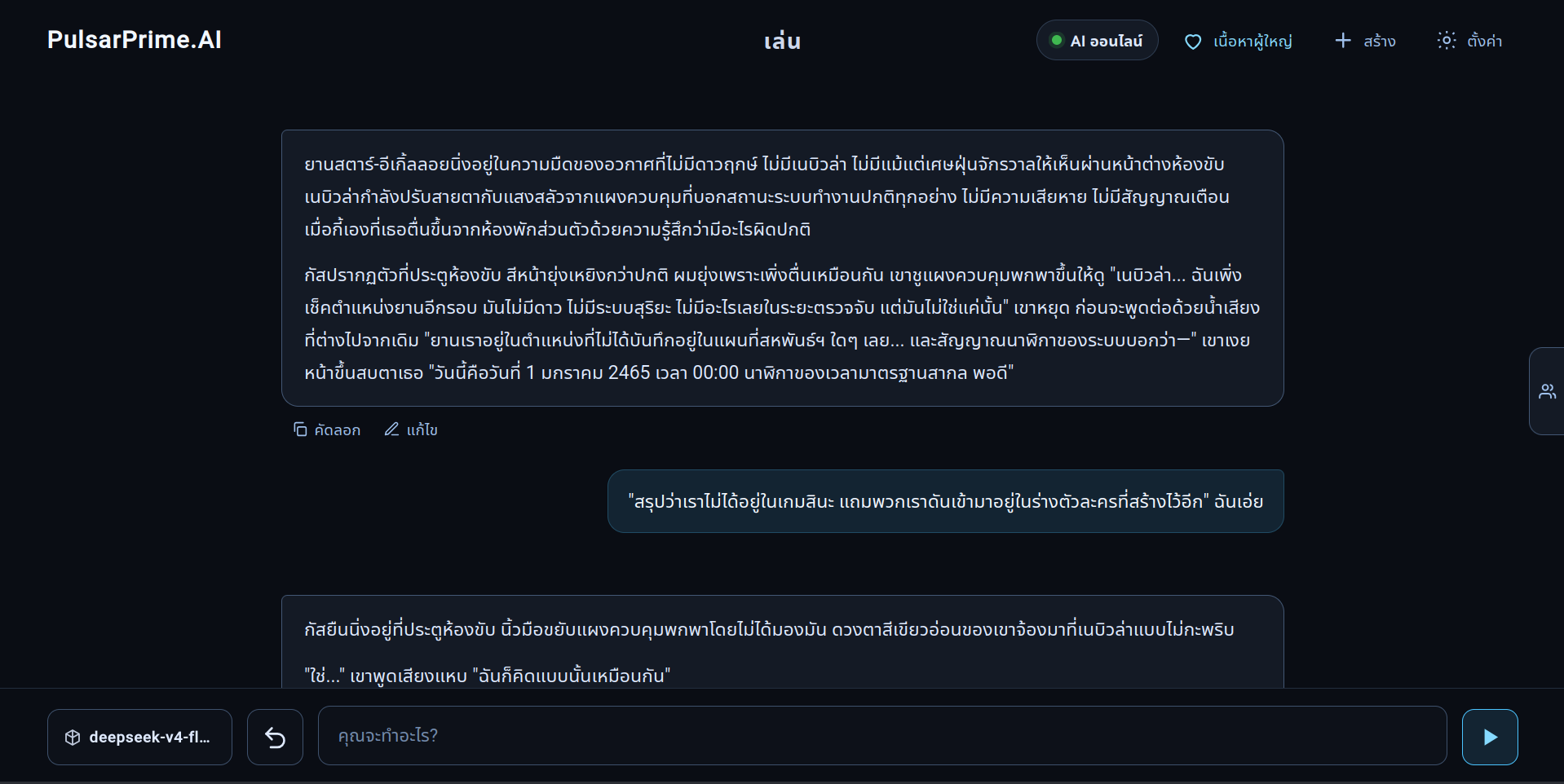
What sets it apart from typical character chatbots is that it's built for sustained, long-form play, not short exchanges.
What it can do
Memory / context
- Sustains play beyond 100 turns without losing track of the story
- A recall system retrieves older events even after content has exceeded the model's context window
Gameplay
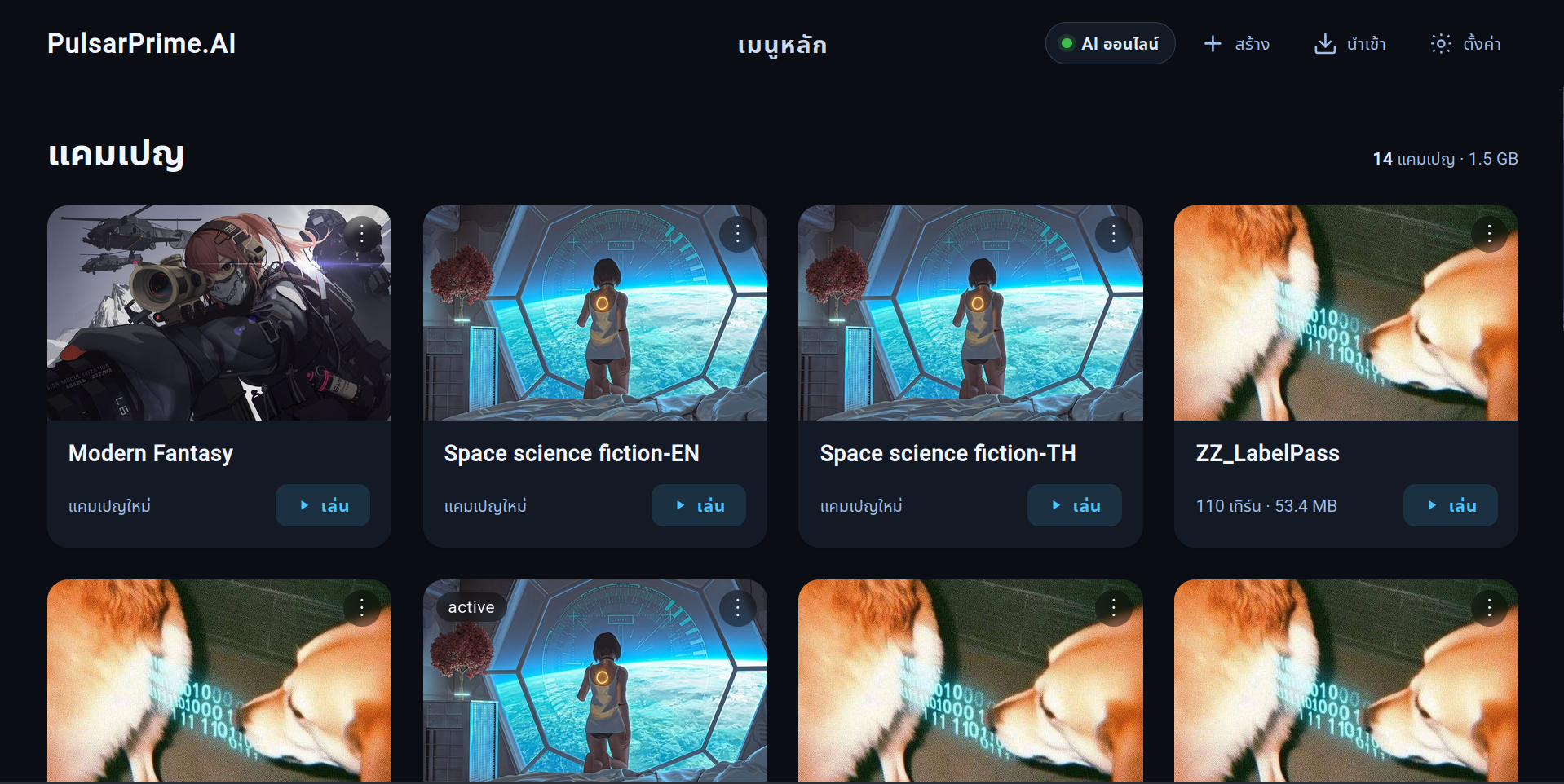
- Comes with 2 pre-built worlds (one Thai, one English) — jump right in
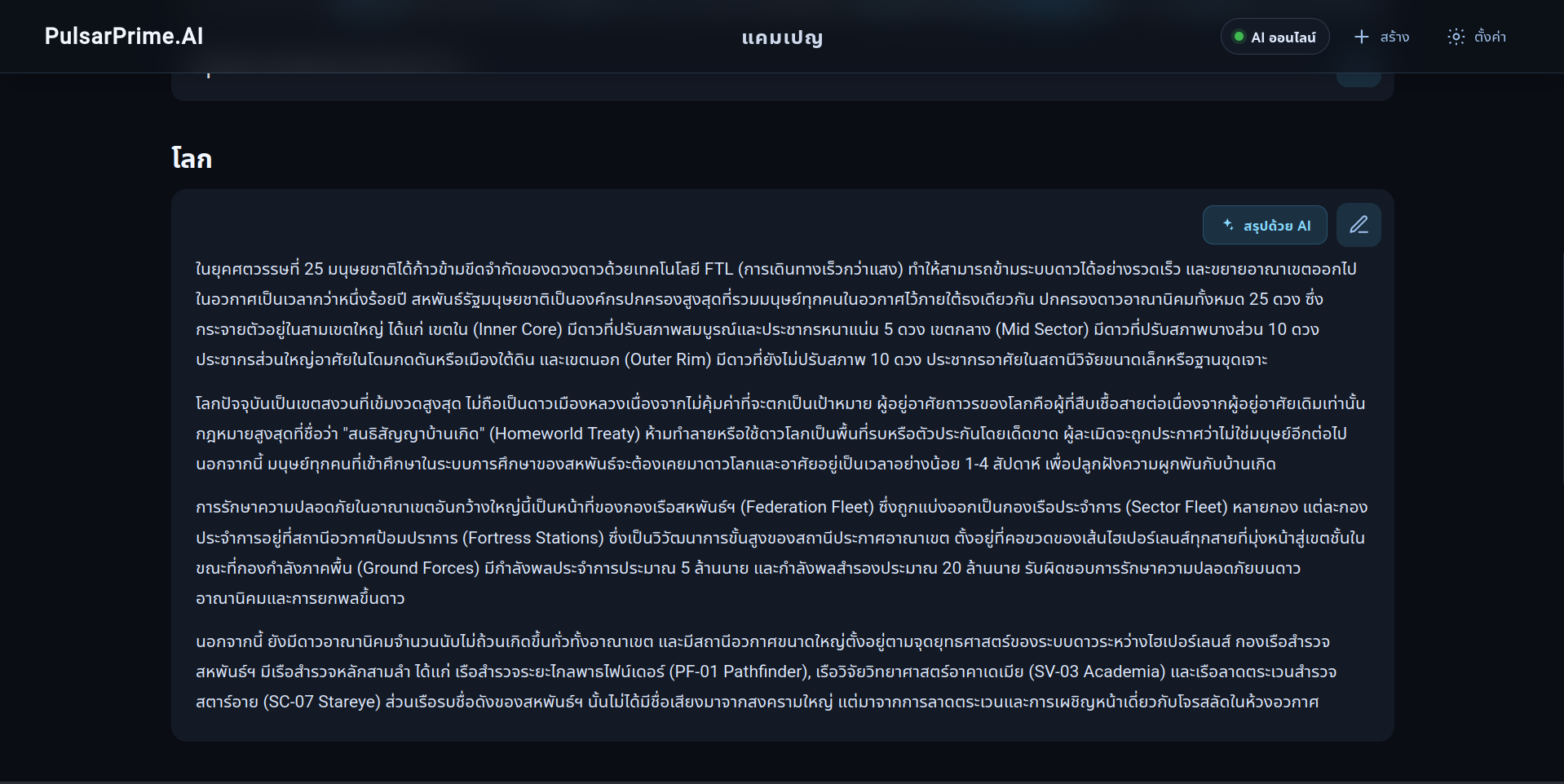
- Build your own world from scratch
- Edit mode — manually adjust world data, characters, history, and NPC relationships at any point
The app itself
- Runs on plain Python — no .exe or .bat files. The game is a local web server that runs on your own machine and opens through your browser
- All save data stays on your machine; nothing is sent out except the conversation text sent to whichever AI you've chosen to use
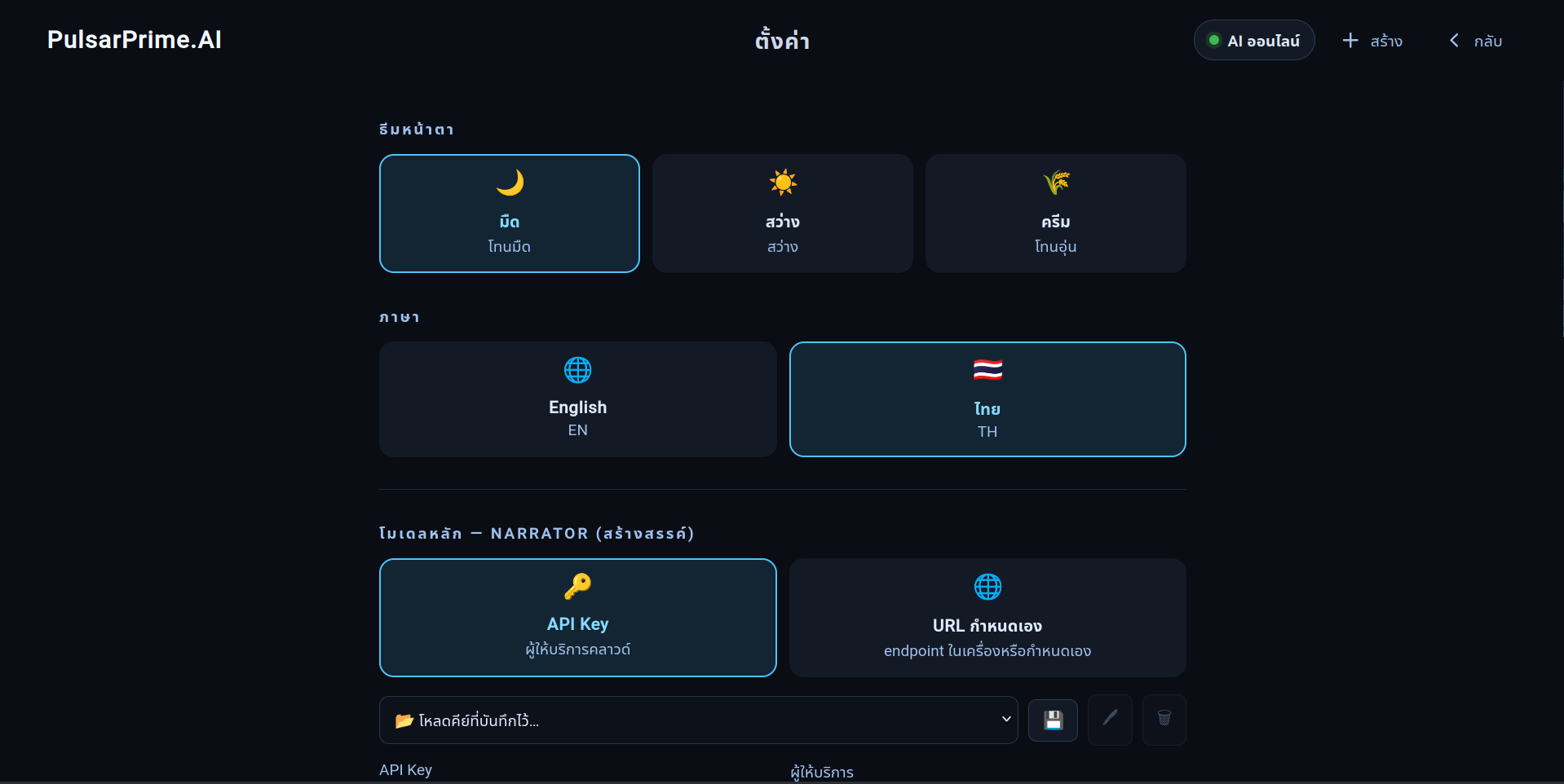
- Switch UI language between Thai/English and change the color theme
Not yet enabled in the demo (planned for the full version)
- Automatic world-building from existing anime/games/novels
- Wingman — an AI companion that helps build worlds and characters through conversation
- Full data-tracking detail for mature mode (mature mode still works normally if you're using an AI without content filtering, but the demo trims some of the tracking detail)
What you need to use it
- Your own API key from whichever AI provider you choose (not included, and no data is collected from you)
Download
Install instructions
════════════════════════════════════════════════════
Quick start
════════════════════════════════════════════════════
1. Install Python 3.9+ (Microsoft Store "Python 3.12", or python.org —
on Windows tick "Add python.exe to PATH").
2. Extract the whole ZIP into an empty folder. Do NOT run it from inside
the ZIP, and do not put it in C:\Program Files\.
3. Run it:
Windows double-click PulsarPrime.py
macOS/Linux python3 PulsarPrime.py
A console window opens and your browser goes to http://127.0.0.1:8091/pp/
(if that port is busy it moves to the next one and tells you).
Keep the console window open while you play. Ctrl+C to stop.
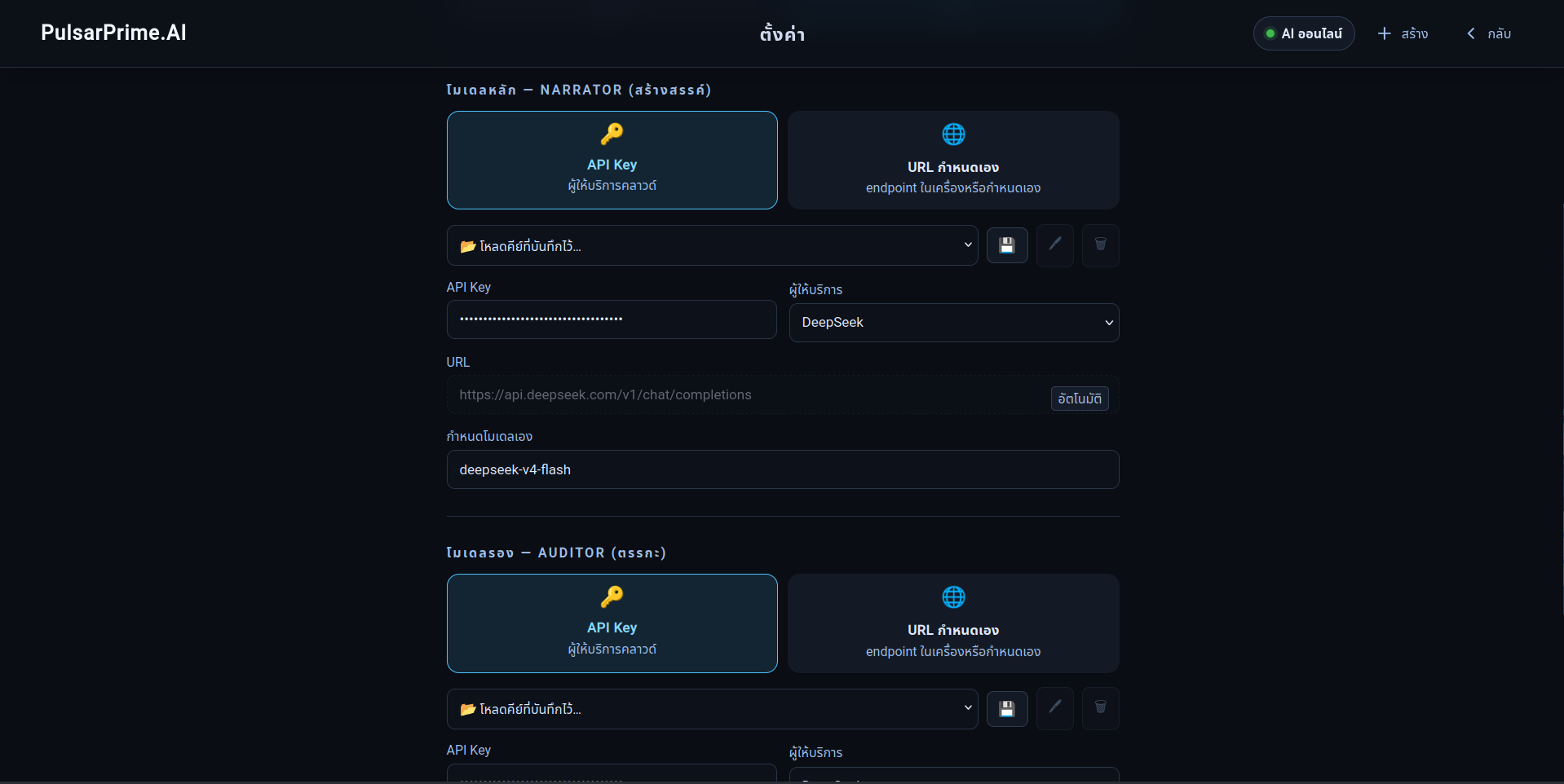
4. Add your own AI API key: Settings (top right) → paste → save.
Recommended: DeepSeek (platform.deepseek.com) — cheap and handles Thai well.
Based on DeepSeek pricing, expect roughly $0.01 per turn (~$1 per 100 turns).
Cost varies if you use a different provider.
There is no .exe and no .bat in this pack — only Python source and text —
so there is nothing for Windows Smart App Control to block. All required
libraries are bundled in the app folder — nothing extra to install, and
every save stays right here on your machine.
Two ready-made worlds are included (one Thai, one English) — open one and play.
Held back for the full version: the fanfic world-builder, the Wingman AI
co-builder, and the mature-content layer. The buttons are still there and
explain themselves when pressed.
.
Troubleshooting
The console window opens then closes immediately
→ Python isn't installed yet, or the ZIP wasn't extracted
completely (make sure the "vendor" folder sits next to
PulsarPrime.py).
Error message: "vendor folder not found"
→ The ZIP wasn't extracted fully. Delete the folder and
extract the whole ZIP again into a fresh, empty folder.
Double-clicking PulsarPrime.py asks "What do you want to
open this file with?"
→ Python isn't installed yet, or it's installed but wasn't
added to PATH. Reinstall and check "Add python.exe to PATH".
The browser doesn't open automatically
→ Open your browser manually and go to the address shown
in the console window (e.g. http://127.0.0.1:8091/pp/).
The AI says "not connected"
→ You haven't added an API key yet, or it was entered
incorrectly. Go to Settings (top right) → paste your key
→ save.